Getting started
This section contains instructions on how to get started with the service and describes the main methods of submitting captchas and recognizing them.
Step 1. Create an account
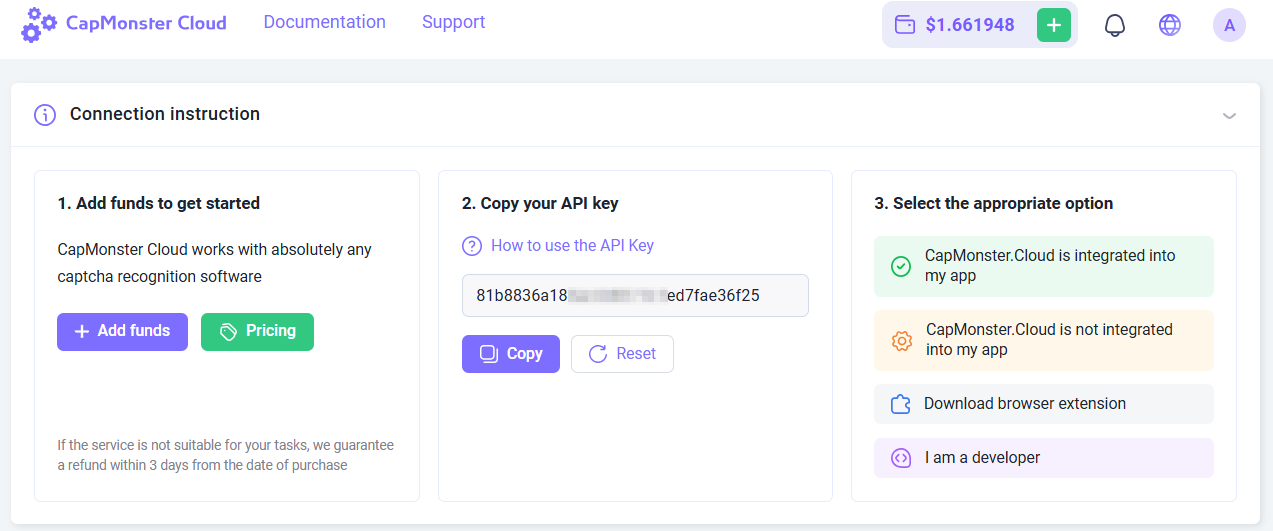
Before solving captchas, register at CapMonster Cloud in any convenient way. Then go to your Dashboard, where you’ll find all the necessary information — your current balance, API key, and statistics on solved and unsolved tasks.
Step 2. Top up your balance
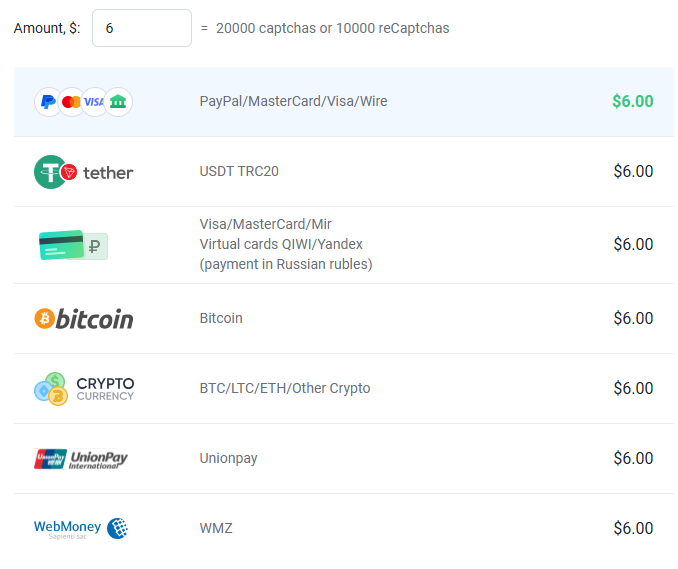
The service supports several payment methods.
Now you can solve captchas automatically using the browser extension or by creating tasks via API.
Methods of sending and receiving results
https://api.capmonster.cloud
Request format: JSON POST.
Response is always in the JSON format.
To solve a captcha, you need to:
- Create a captcha task using createTask.
- Wait for some time. Depending on system load, the response is usually received within 300 ms to 6 s.
- Request the captcha solution using getTaskResult. If the captcha is not solved yet, go back to step 2.
Additional method:
- Get the current account balance.
Code examples
For your convenience, we’ve created ready-to-use libraries for quick integration of the CapMonster Cloud API into your code. Solve various types of captchas at the lowest prices on the market!
| Language | Link to the repository |
|---|---|
| С# | - Nuget - Github |
| Python | - PyPl - Github |
| JS | - Npm - Github |
| GO | - Pkg.go.dev - Github |
| PHP | - Packagist - Github |
Captcha recognition methods
1. Via token
This is the basic method of captcha recognition, where you need to:
-
Manually find the parameters on the page, such as:
sitekey(orwebsiteKey) — the unique captcha identifierwebsiteURL— the address of the page where the captcha is displayed
-
Analyze the JavaScript code and network requests to extract these values
-
Send a task to CapMonster Cloud with the required parameters
-
Receive a token in response — a unique code confirming the captcha solution
-
Perform autosubmit — send the token to the site to confirm captcha completion
Suitable for developers who are ready to manually analyze the code and build the logic for submitting the solution.
2. Via clicks
This method simulates user actions (mouse movement, clicks, selecting images). It’s available through the browser extension and API. With this method, you can solve reCAPTCHA and complex image-based captchas.
This method is useful if:
- the website uses a non-standard captcha implementation;
- parameters are encrypted or dynamically inserted;
- the submit function is hidden deep inside scripts.
You can also apply the click method in ZennoPoster. To do this, simply install our CapMonster Cloud extension (see section CapMonster Cloud Extension Installation in ProjectMaker Browser) into a Chromium-based project, enter your API key, and use the extension the same way as in the Chrome system browser.
Token submission examples in ZennoPoster
There are several ways to pass a captcha token in ZennoPoster, for example, using ready-made ProjectMaker actions or with HTTP requests.
Using ProjectMaker actions
-
Integrate CapMonster Cloud in ProjectMaker (Settings → Captchas → Select
CapMonster Cloudmodule, enter your API key). -
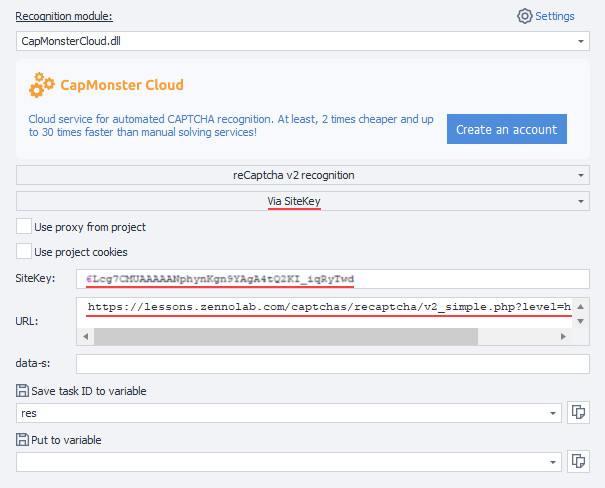
Add actions Clear cookies → Navigate to page (for example, for reCaptcha v.2 — https://lessons.zennolab.com/captchas/recaptcha/v2_simple.php?level=high) → Recognize ReCaptcha.
-
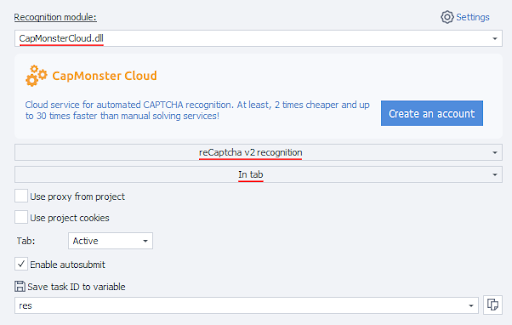
In the Recognize ReCaptcha action properties, select the
CapMonsterCloud.dllmodule, specify the captcha type (reCAPTCHA v.2), and recognition method (In tab or Via sitekey):
- When choosing Via sitekey, enter the captcha data (
sitekey) and URL (the page address where the captcha is located):
How to find the parameters for reCAPTCHA v.2 you can learn here.
reCAPTCHA v.3
-
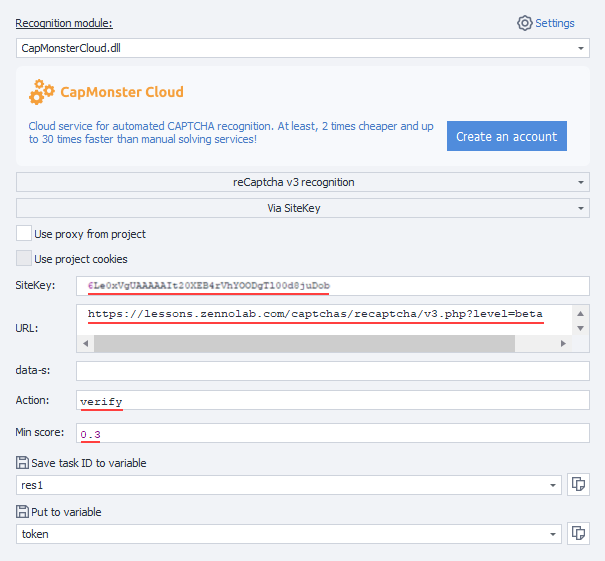
Add actions Clear cookies → Navigate to page (for example, https://lessons.zennolab.com/captchas/recaptcha/v3.php?level=beta) → Recognize ReCaptcha.
-
In the action properties, select the CapMonsterCloud.dll module, specify captcha type (reCAPTCHA v.3), method (In tab or Via Sitekey), and also provide
ActionandminScore.
How to find the parameters for reCAPTCHA v.3 you can learn here.
Using HTTP requests
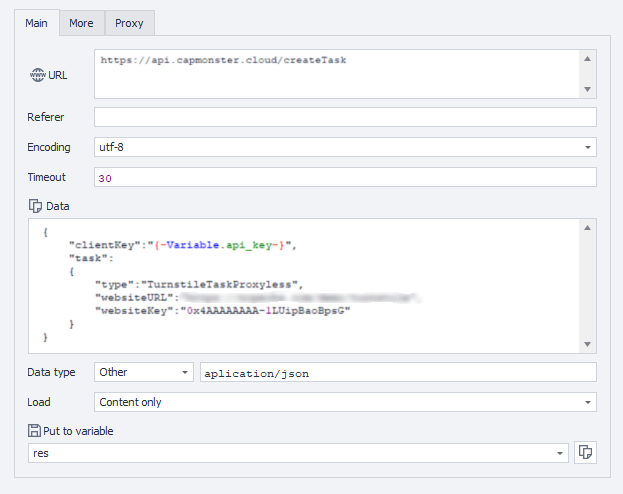
For some types of captchas, there are no ready-made ProjectMaker actions, so you need to use the extension or compose requests manually to solve the captcha.
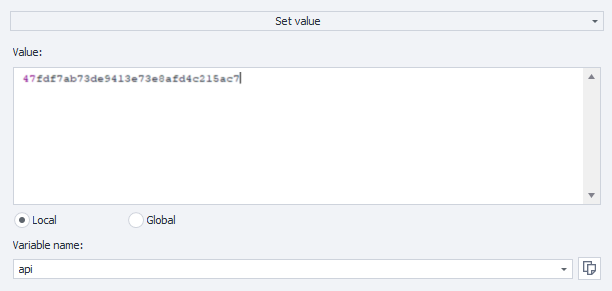
- Add Variable Processing action (Add action → Data → Variable Processing), choose Set Value, and enter your CapMonster Cloud API key:
- Add HTTP → POST request action (if necessary, specify proxy details):
- Add JSON/XML Processing action (Add action → Data → JSON/XML Processing), choose Parsing, type — JSON, and for parsing text select Set Value from Variable:

- Add Variable Processing action and set the value to
{-Json.taskId-}:

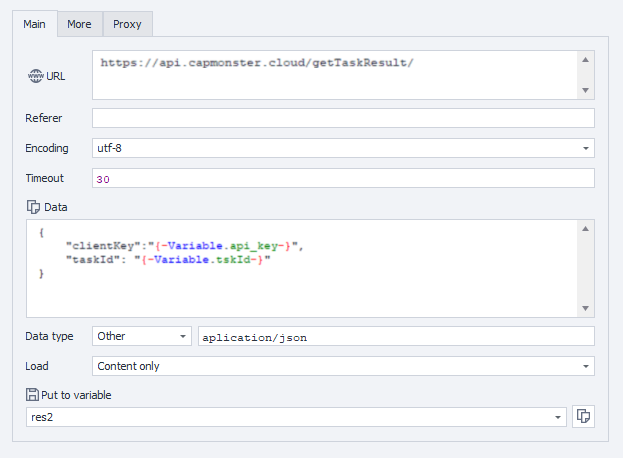
- Form a new POST request to get the result:
- Add a Parsing action in JSON/XML Processing:

- Insert the received token into the required captcha form (after analyzing the page code) using the Set Value action: