ImageToText
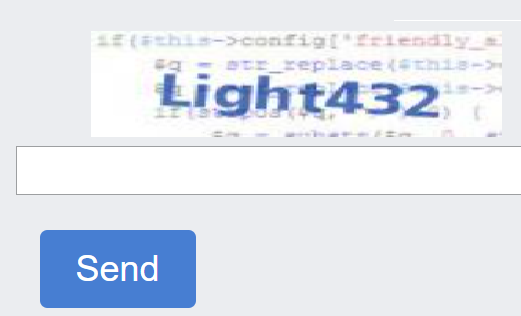
This is a regular captcha, which is an image with text to be entered into the corresponding line.
Using proxy servers is not required for this task.
Request parameters
IMPORTANT: retrieve the base64 image immediately before creating the task to avoid errors during solving (see the example below for obtaining a captcha image in base64 format).
type<string>requiredImageToTextTask
body<string>requiredFile body encoded in base64*. Make sure to send it without line breaks.
capMonsterModule<string>optionalThe name of recognizing module, for example, “yandex“. Alternative way to pass module name and list of all available modules you can find here.
Example: yandex, special and others
recognizingThreshold<integer>optionalCaptcha recognition threshold with a possible value from 0 to 100. For example, if recognizingThreshold was set to 90 and the task was solved with a confidence of 80, you won't be charged. In this case the user will get a response ERROR_CAPTCHA_UNSOLVABLE. An alternative method for setting the threshold for deducting money is described in the article.
case<boolean>optionaltrue - if captcha is case sensitive.
numeric<integer>optional1 - if captcha contains numbers only.
Possible values: 0, 1
math<boolean>optionalfalse — undefined;
true — if captcha requires a mathematical operation (for example: captcha 2 + 6 = will return a value of 8). Important: Do not use the math: true parameter for the captcha_math module.
*Base64 is a data encoding method that allows you to represent binary data as text. Here is an example of obtaining a captcha image in base64 format using the console in the Developer Tools:
const captchaUrl = 'https://example.com/captcha.jpg';

function loadAndEncodeCaptchaToBase64(url) {
    fetch(url)
        .then(response => response.blob())
        .then(blob => {
            const reader = new FileReader();
            reader.readAsDataURL(blob);

            reader.onloadend = function() {
                const base64Data = reader.result;
                console.log('Base64 Encoded Captcha:', base64Data);

                          };
        })
        .catch(error => {
            console.error('Error occurred while loading or encoding the captcha:', error);
        });
}

loadAndEncodeCaptchaToBase64(captchaUrl);
Create task method
https://api.capmonster.cloud/createTask
Request
{
  "clientKey": "API_KEY",
  "task": {
    "type": "ImageToTextTask",
    "body": "BASE64_BODY_HERE!"
  }
}
Response
{
  "errorId":0,
  "taskId":407533072
}
Get task result method
Use the getTaskResult method to get the captcha solution. Depending on the system load, you will receive an answer within an interval from 300 ms to 6 s
https://api.capmonster.cloud/getTaskResult
Request
{
  "clientKey":"API_KEY",
  "taskId": 407533072
}
Response
{
  "errorId": 0,
  "status": "ready",
  "solution": {
    "text": "answer"
  }
}
| Property | Type | Description |
|---|---|---|
| text | String | Captcha answer |
How to find all required parameters for task creation
Manually
- Open your website where the captcha appears in the browser.
- Right-click on the captcha element and select Inspect.
base64
Locate the required element in the DOM tree and hover over it – the base64-encoded image will be displayed directly in the element's attributes:

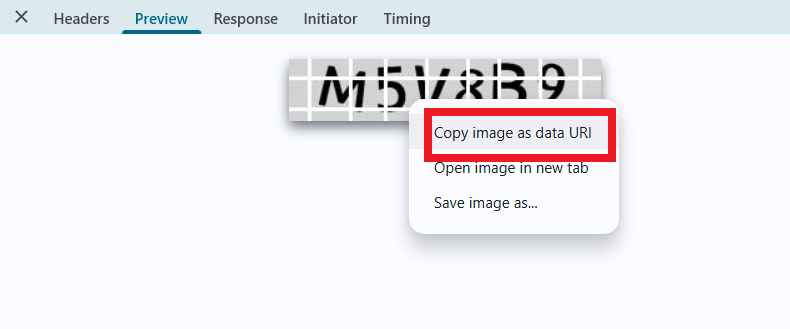
If the image references an external URL rather than containing base64-encoded data, you can find it in the network requests (Network). Right-click on the relevant request and select Copy image as data URI. This will copy the base64-encoded image data to your clipboard.
Automatically
To automate parameter extraction, you can retrieve them via a browser (regular or headless, e.g., using Playwright) or directly from HTTP requests. Since dynamic parameter values are short-lived, it is recommended to use them immediately after retrieval.
The provided code snippets are basic examples for learning how to extract the required parameters. The exact implementation will depend on your captcha page, its structure, and the HTML elements and selectors used.
- JavaScript
- Python
- C#
Show code (for browser)
(async () => {
  const img = document.querySelector('img'); // Example selector

  const imageUrl = img.src;

  const response = await fetch(imageUrl);

  if (!response.ok) {
    throw new Error("Failed to load image");
  }

  const buffer = await response.arrayBuffer();

  // Convert binary data to base64
  const base64Image = btoa(String.fromCharCode(...new Uint8Array(buffer)));

  console.log(base64Image);
})();
Show code (Node.js)
(async () => {
  const imageUrl = "https://example/img/.jpg"; // Image URL

  const response = await fetch(imageUrl);

  if (!response.ok) {
    throw new Error("Failed to load image");
  }

  const buffer = await response.arrayBuffer();

  // Convert data to base64
  const base64Image = Buffer.from(buffer).toString("base64");

  console.log(base64Image);
})();
Show code
import requests
import base64

# Image URL
image_url = "https://example/img.jpg"

response = requests.get(image_url)

if response.status_code == 200:
    # Convert image binary data to base64
    base64_image = base64.b64encode(response.content).decode('utf-8')

    print(base64_image)
else:
    print("Failed to load image")
Show code
using System;
using System.Net.Http;
using System.Threading.Tasks;

class Program
{
    static async Task Main(string[] args)
    {
        // Image URL
        string imageUrl = "https://example/img.jpg";

        using (HttpClient client = new HttpClient())
        {
            try
            {
                byte[] imageBytes = await client.GetByteArrayAsync(imageUrl);

                // Convert image binary data to base64
                string base64Image = Convert.ToBase64String(imageBytes);

                Console.WriteLine(base64Image);
            }
            catch (Exception ex)
            {
                Console.WriteLine("Failed to load image: " + ex.Message);
            }
        }
    }
}
Use the SDK library
- JavaScript
- Python
- C#
Show code (for browser)
// https://github.com/ZennoLab/capmonstercloud-client-js

import { CapMonsterCloudClientFactory, ClientOptions, ImageToTextRequest, CapMonsterModules } from '@zennolab_com/capmonstercloud-client';

document.addEventListener('DOMContentLoaded', async () => {
    const cmcClient = CapMonsterCloudClientFactory.Create(
        new ClientOptions({ clientKey: 'YOUR_API_KEY' }) // Specify your CapMonster Cloud API key
    );

    // Optionally, you can check the balance
    const balance = await cmcClient.getBalance();
    console.log("Balance:", balance);

    const imageToTextRequest = new ImageToTextRequest({
        body: 'some base64 body', // Replace with actual value
        CapMonsterModule: CapMonsterModules.YandexWave,
        Case: true,
        numeric: 1,
        recognizingThreshold: 65,
        math: false
    });

    const result = await cmcClient.Solve(imageToTextRequest);
    console.log("Solution:", result);
});
Show code (Node.js)
// https://github.com/ZennoLab/capmonstercloud-client-js

import { CapMonsterCloudClientFactory, ClientOptions, ImageToTextRequest, CapMonsterModules } from '@zennolab_com/capmonstercloud-client';

const API_KEY = "YOUR_API_KEY"; // Specify your CapMonster Cloud API key

async function solveImageToText() {
    const cmcClient = CapMonsterCloudClientFactory.Create(
        new ClientOptions({ clientKey: API_KEY })
    );

    // Optionally, you can check the balance
    const balance = await cmcClient.getBalance();
    console.log("Balance:", balance);

    const imageToTextRequest = new ImageToTextRequest({
        body: 'some base64 body', // Replace with actual value
        CapMonsterModule: CapMonsterModules.YandexWave,
        Case: true,
        numeric: 1,
        recognizingThreshold: 65,
        math: false
    });

    const result = await cmcClient.Solve(imageToTextRequest);
    console.log("Solution:", result);
}

solveImageToText().catch(console.error);
Show code
# https://github.com/ZennoLab/capmonstercloud-client-python

import asyncio
import base64
from capmonstercloudclient import CapMonsterClient, ClientOptions
from capmonstercloudclient.requests import ImageToTextRequest

# Specify your CapMonster Cloud API key
client_options = ClientOptions(api_key="YOUR_API_KEY")
cap_monster_client = CapMonsterClient(options=client_options)

# Image in base64 format
image_base64 = "/9j/4AAQSkZJRgABAQAAAQABAAD/2wBDAAgGBgc...wwzqR4U/yZ//Z"  # Replace with actual value
image_bytes = base64.b64decode(image_base64)

image_to_text_request = ImageToTextRequest(
    image_bytes=image_bytes,
    module_name=None,     # You can select a module, e.g., YandexWave
    threshold=50,
    case=True,
    numeric=0,
    math=False
)

async def solve_captcha():
    # Optionally, you can check the balance
    balance = await cap_monster_client.get_balance()
    print("Balance:", balance)

    solution = await cap_monster_client.solve_captcha(image_to_text_request)
    return solution

responses = asyncio.run(solve_captcha())
print("Solution:", responses)
Show code
// https://github.com/ZennoLab/capmonstercloud-client-dotnet

using System;
using System.Threading.Tasks;
using Zennolab.CapMonsterCloud.Requests;
using Zennolab.CapMonsterCloud;

class Program
{
    static async Task Main(string[] args)
    {
        var clientOptions = new ClientOptions
        {
            ClientKey = "YOUR_API_KEY" // Specify your CapMonster Cloud API key
        };

        var cmCloudClient = CapMonsterCloudClientFactory.Create(clientOptions);

        // Optionally, you can check the balance
        var balance = await cmCloudClient.GetBalanceAsync();
        Console.WriteLine("Balance: " + balance);

        var imageToTextRequest = new ImageToTextRequest
        {
            Body = "/9j/4AAQSkZJRgABAQAAAQABAAD/2wBDAAgGBgc...wwzqR4U/yZ//Z", // Replace with actual value
            CapMonsterModule = "None",
            RecognizingThreshold = 70,
            CaseSensitive = true,
            Numeric = false,
            Math = false
        };

        var imageToTextResult = await cmCloudClient.SolveAsync(imageToTextRequest);

        Console.WriteLine("Captcha Solved: " + imageToTextResult.Solution.Value);
    }
}