Castle
Castle is a website protection system that blocks automated attacks and suspicious activity. It monitors user behavior and requests in real time, remaining almost invisible to regular visitors and only becoming noticeable during unusual or high-volume traffic.

CapMonster Cloud uses built-in proxies by default — their cost is already included in the service. You only need to specify your own proxies in cases where the website does not accept the token or access to the built-in services is restricted.
If you are using a proxy with IP authorization, make sure to whitelist the address 65.21.190.34.
Request parameters
type<string>requiredCustomTask
class<string>requiredCastle
websiteURL<string>requiredThe URL of the page where Castle is located.
websiteKey<string>requiredPublishable Key, the Castle identifier. It can be found on the page/in the site scripts.
Example: pk_1Tk5Yzr1WFzxrJCh7WzMZzY1rHpaOtdK
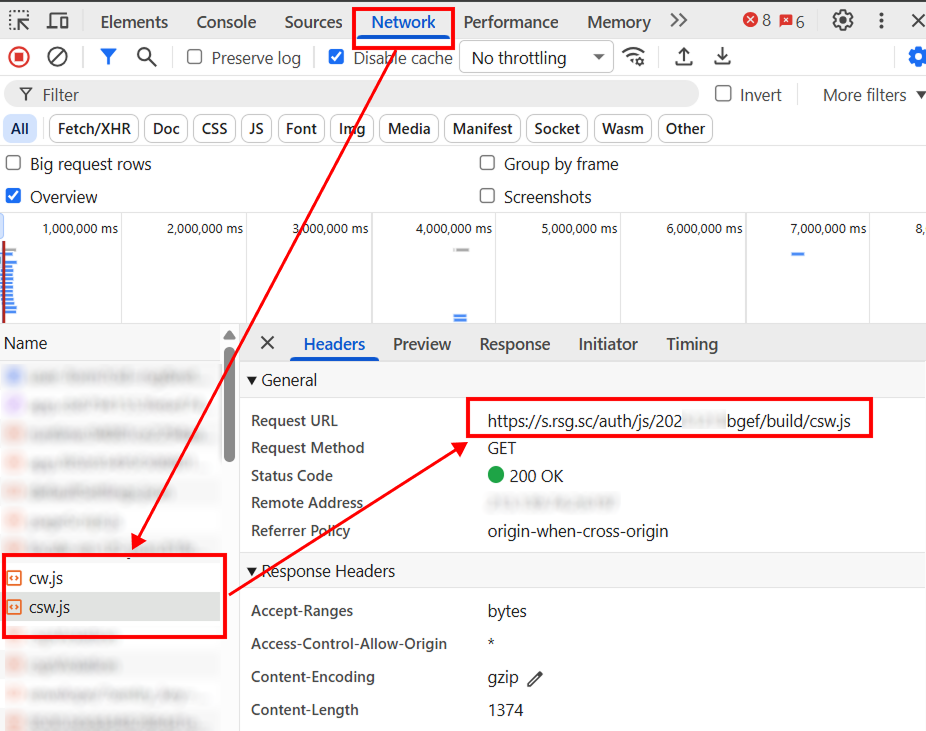
wUrl (inside metadata)<string>requiredLink to cw.js, for example: https://s.rsg.sc/auth/js/20251234bgef/build/cw.js
swUrl (inside metadata)<string>requiredLink to csw.js, for example: https://s.rsg.sc/auth/js/20251213bgef/build/csw.js
count (inside metadata)<intenger>optionalNumber of tokens — default is 1 (generation of 1 to 49 Castle tokens bound to the same browser session, i.e. with the same __cuid identifier).
If a value greater than 49 is specified, the maximum allowed number of tokens — 49 — will be returned, and the cost will be calculated based on this amount.
userAgent<string>optionalBrowser User-Agent.
Pass only a valid UA from Windows OS. Currently it is: userAgentPlaceholder
proxyType<string>optionalhttp - regular http/https proxy;
https - try this option only if "http" does not work (required for some custom proxies);
socks4 - socks4 proxy;
socks5 - socks5 proxy.
proxyAddress<string>optionalProxy IPv4/IPv6 IP address. Not allowed:
- use of transparent proxies (where the client IP is visible);
- use of proxies on local machines.
proxyPort<integer>optionalProxy port.
proxyLogin<string>optionalProxy server login.
proxyPassword<string>optionalProxy server password.
Create task method
- CustomTask (without proxy)
- CustomTask (with proxy)
https://api.capmonster.cloud/createTask
Request
{
  "type": "CustomTask",
  "Class": "Castle",
  "websiteURL": "https://www.example.com/",
  "websiteKey": "pk_1Tk5Yzr1WFzxrJCh7WzMZzY1rHpaOtdK",
  "userAgent": "userAgentPlaceholder",
  "metadata": {
    "wUrl": "https://s.rsg.sc/auth/js/20251234bgef/build/cw.js",
    "swUrl": "https://s.rsg.sc/auth/js/20251234bgef/build/csw.js",
    "count": 1
  }
}
Response
{
    "errorId": 0,
    "taskId": 123456789
}
https://api.capmonster.cloud/createTask
Request
{
  "type": "CustomTask",
  "Class": "Castle",
  "websiteURL": "https://www.example.com/",
  "websiteKey": "pk_1Tk5Yzr1WFzxrJCh7WzMZzY1rHpaOtdK",
  "userAgent": "userAgentPlaceholder",
  "metadata": {
    "wUrl": "https://s.rsg.sc/auth/js/20251234bgef/build/cw.js",
    "swUrl": "https://s.rsg.sc/auth/js/20251234bgef/build/csw.js",
    "count": 1
  },
  "proxyType": "http",
  "proxyAddress": "8.8.8.8",
  "proxyPort": 8080,
  "proxyLogin": "proxyLoginHere",
  "proxyPassword": "proxyPasswordHere"
}
Response
{
  "errorId": 0,
  "taskId": 407533072
}
Get task result method
Use the getTaskResult method to get the TenDI solution.
https://api.capmonster.cloud/getTaskResult
Request
{
  "clientKey":"API_KEY",
  "taskId": 407533072
}
Response
{
  "errorId": 0,
  "status": "ready",
  "solution": {
    "data": {
      "tokens": [
        "Q05Ap...H7nYn",
        "cn9xW...aFl_4",
        "..."
      ]
    },
    "domains": {
      "www.example.com": {
        "cookies": {
          "__cuid": "6883480a9ab7442d9f97da7307d6ea9c"
        }
      }
    }
  }
}
How to get Castle parameters
pk (websiteKey)
Option 1:
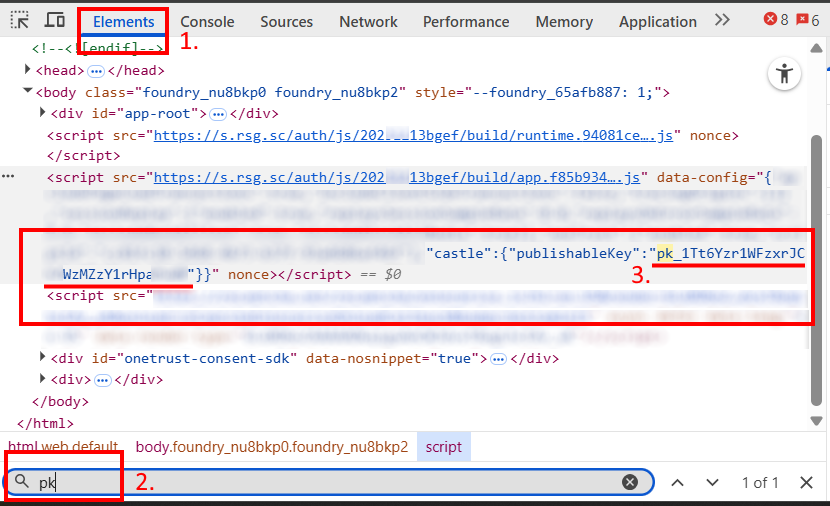
- Open the page with Castle, launch Developer Tools, go to the Elements tab.
- Open search (Ctrl + F) and enter the keywords pk or publishableKey.
- Find the
Publishable Keyparameter among the page elements or in the connected scripts.
Option 2:
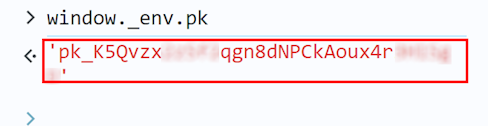
If the site uses the window._env object:

Copy the pk value or enter the following command in the browser console: window._env.pk
Option 3:
If pk is contained in data-config:
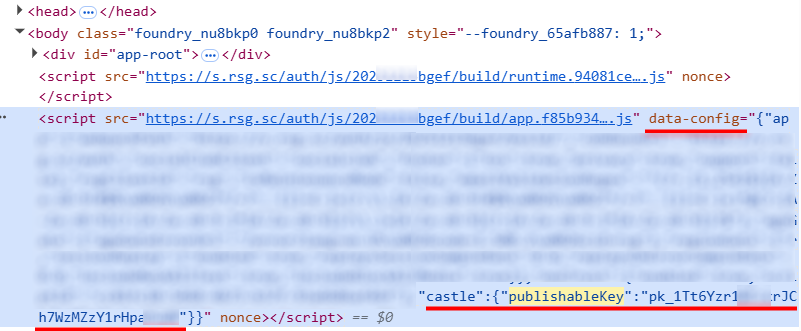
Copy the pk value or use the following code in the browser console:
const script = document.querySelector('script[data-config]');
const config = JSON.parse(script.dataset.config);
config.castle.publishableKey;
cw.js and csw.js
In Developer Tools, go to the Network tab, activate Castle and inspect network requests. Find requests to the cw.js and csw.js files and copy their URLs.